Zez Launcher replaces the traditional icon grid with lists, folders, and fast search. This guide covers the first steps after installation.
Set Zez as your default home app
After installing Zez Launcher, press your device’s Home gesture or Home button. Android should ask which home app you want to use. Choose Zez Launcher, then select Always.
If Android does not show the prompt, open your device settings and look for Default apps, Home app, or Launcher. The exact path and wording depend on the device manufacturer and Android version.
You can change your default launcher again at any time from the same system settings screen.
Refresh the app list
Zez deliberately does not run a background service to monitor app installations. After installing or uninstalling an app:
- Open Zez settings.
- Tap Refresh.
- Return to your app list.
The manual refresh is intentional, not a bug. It lets Zez remain idle when you are not using it.

Organize apps into folders
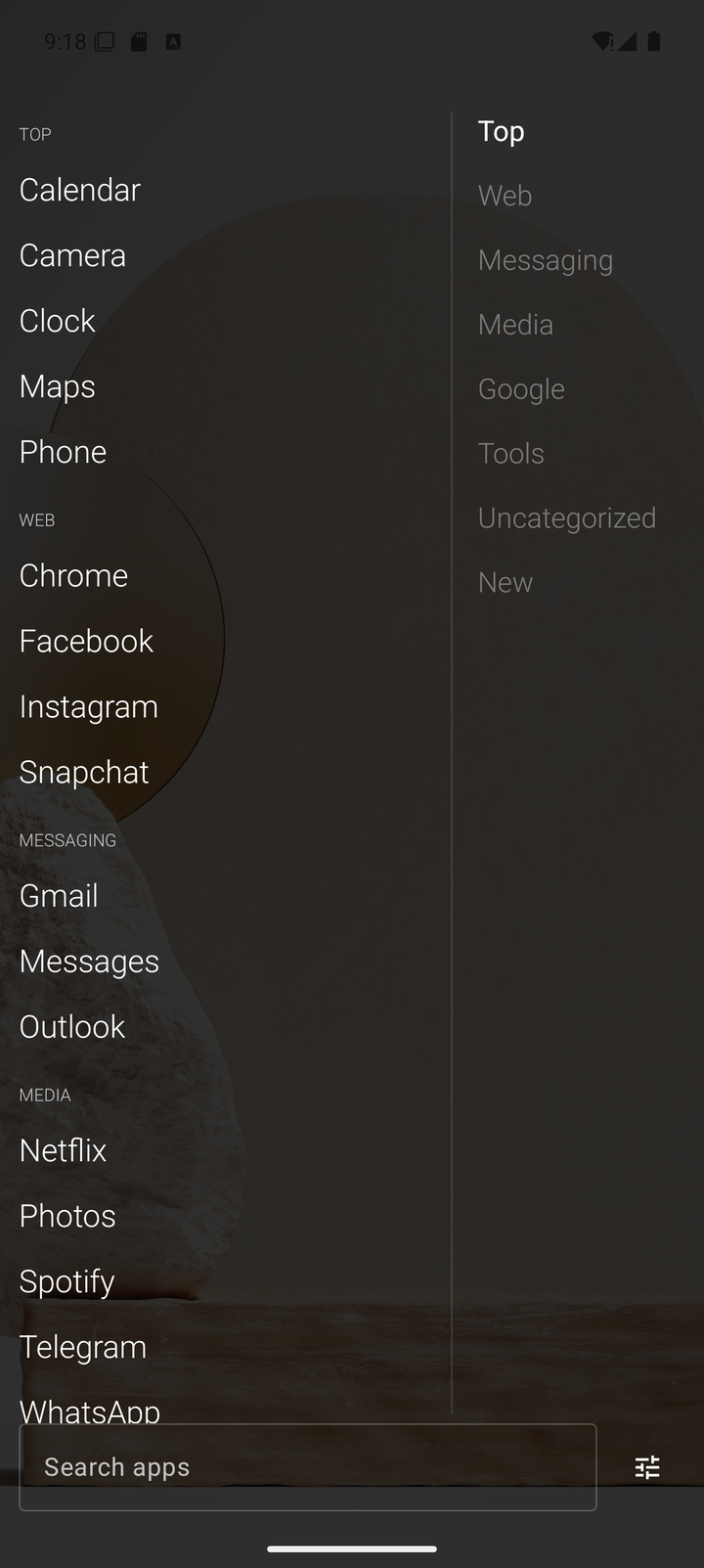
Long-press an app to open its actions, then move it into an existing folder or create a new one. Organize folders around the way you use your phone—for example, Work, Finance, Travel, Media, or Tools.
The folder rail on the right side of the app list lets you jump directly between groups without scrolling through the entire list.
Search and launch
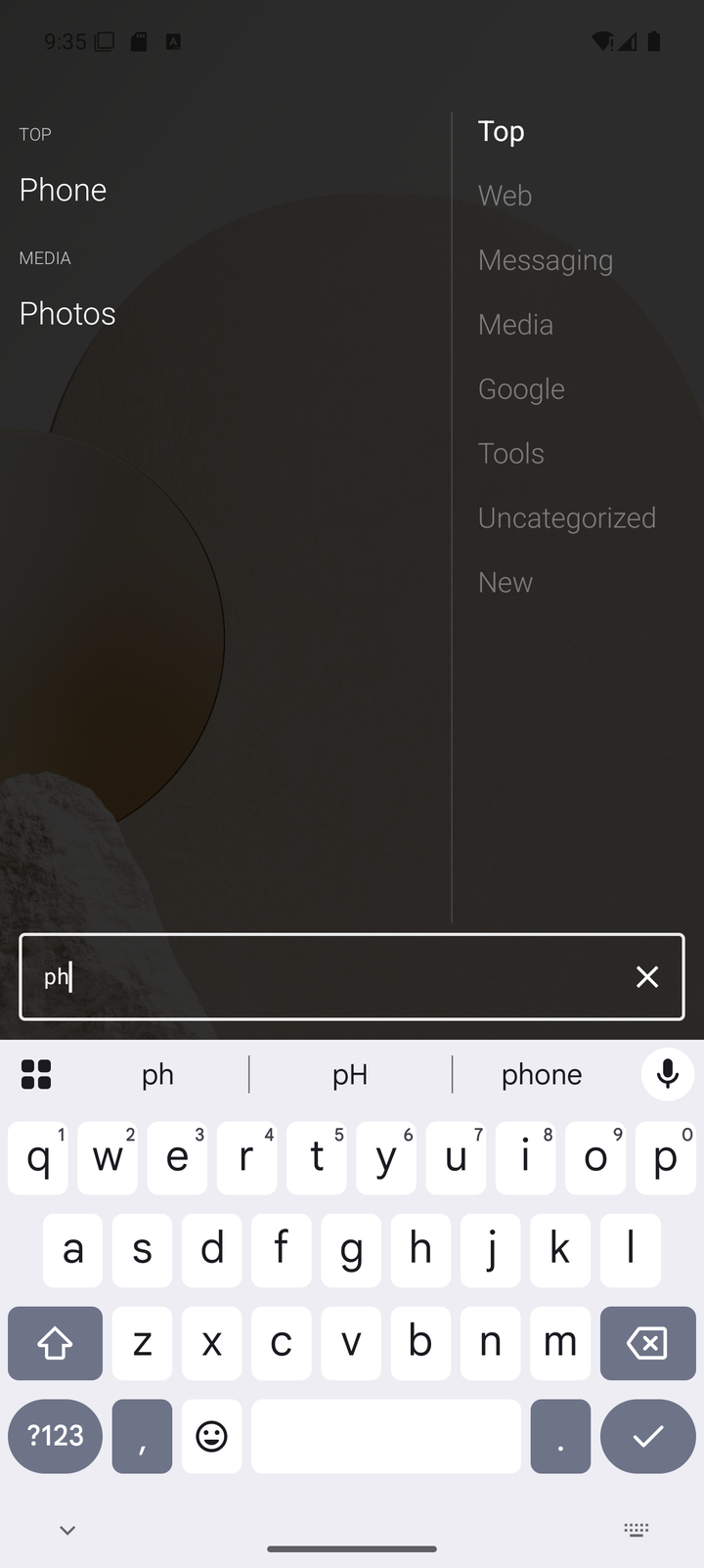
Open the app list and start typing. Zez filters the list as you type. When only one matching app remains, Zez launches it automatically.
This is designed for fast, repeatable navigation rather than browsing through pages of icons.
Configure your home cycle
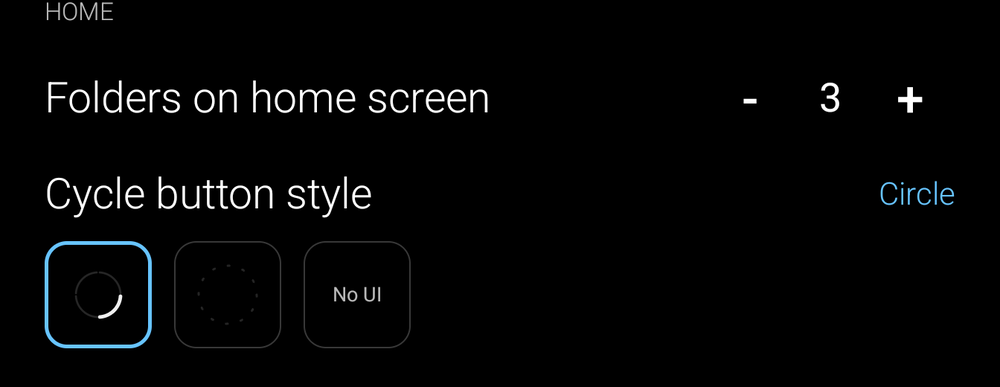
Choose between two and four folders for your home cycle in Zez settings. Use the cycle control on the Home page to rotate between those contexts while keeping the main screen focused.
Add widgets and shortcuts
Widgets live on their own page, separate from the main home view. Long-press an app to view supported shortcuts, then pin and rename the actions you use frequently.
Back up your layout
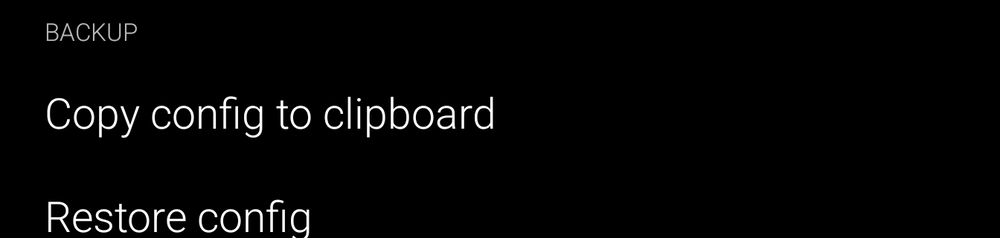
When your setup feels right, export your configuration from Zez settings. Zez does not ask for storage permission, so backups never touch your filesystem — export copies the configuration to your clipboard instead. Paste it into a notes app, cloud document, or anywhere you control. To restore later, copy the text back and use Restore config.
 ← All posts